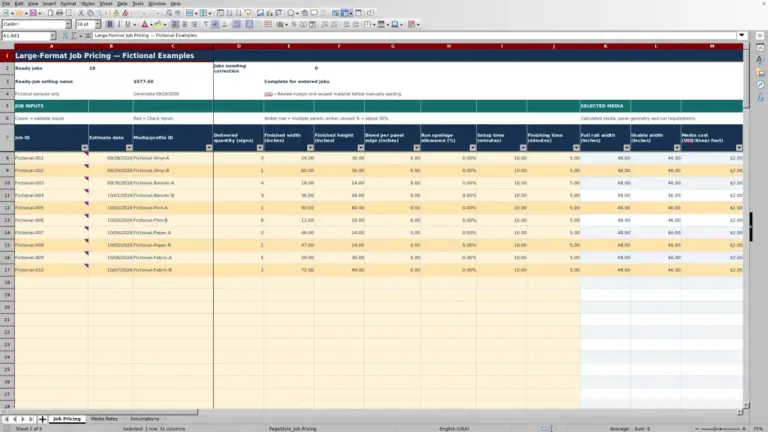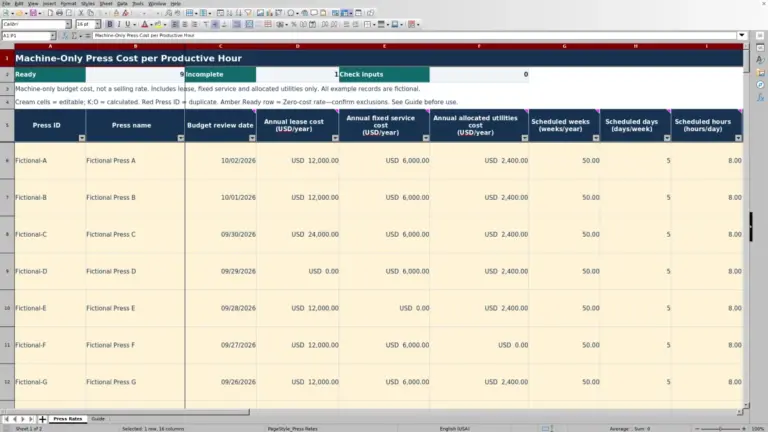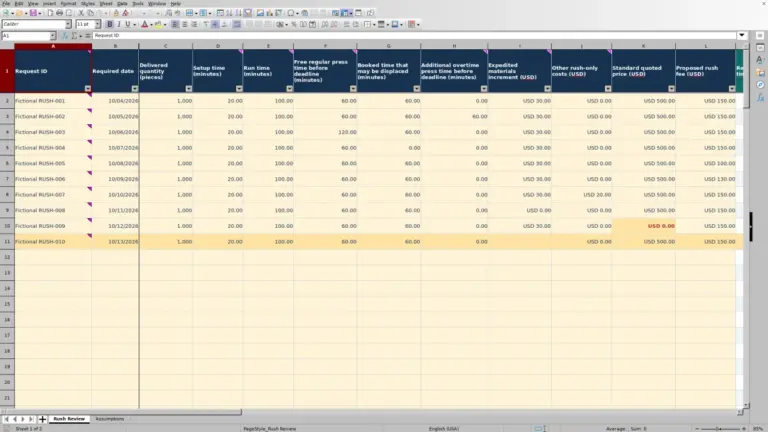
A trade printer’s quote is only part of the make-or-buy decision. The Print Shop Sheets print outsourcing comparison spreadsheet helps you compare that quote, inbound freight and inspection cost with the cost of producing the same specifications in-house.
This editable Excel workbook calculates both cost totals and, when its input checks pass, returns a cost recommendation. It is a cost-comparison resource—not print MIS software, a selling-price calculator or a substitute for checking the supplier’s scope and delivery commitment.
Where this workbook helps
- Compare the entered cost of making a job with the cost of buying the same specifications.
- Keep inbound freight, inspection time and quote exclusions visible alongside the trade quote.
- Withhold a cost recommendation when required specifications, dates or cost inputs need attention.
- Reference one specification record across multiple vendor quote rows.
What is in the file
How to get started
1. Complete the job specification record
Start in Job Specs. Assign one unique Job ID per revision, then enter delivered quantity, finished dimensions, stock and weight convention, front and back colors, and finishing requirements. Specification status shows Ready when the required fields are populated with the expected text or numeric entries.
2. Set your cost rates
In Assumptions, replace the fictional setup, run and inspection rates with your estimates in USD per minute. Check what each rate includes before adding separate costs. The supplied setup and run rate descriptions include labor and equipment overhead but exclude paper, finishing and inspection.
3. Enter each candidate comparison
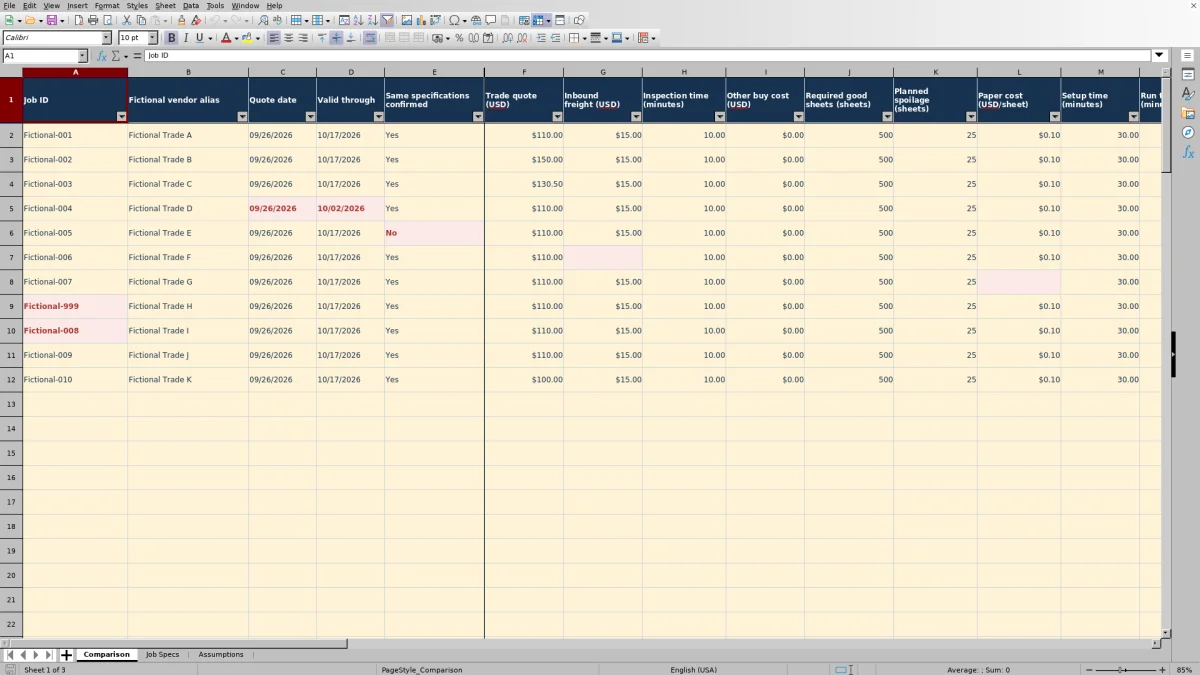
In Comparison, select the Job ID and enter the quote dates, trade quote, inbound freight, inspection minutes and other buy cost. Enter required good sheets, additional spoilage sheets, paper price per sheet, setup and run minutes, and other make cost. Use numeric zeros for applicable cost or time fields when nothing is expected, rather than leaving them blank.
4. Confirm scope and read the result
Set Same specifications confirmed to Yes only after you manually compare the quote with the job specification. Review In-house total (USD), Outsourced total (USD), Savings from buying (USD) and Cost recommendation. Edit the cream input cells; Comparison columns P:V and Job Specs column L contain unprotected formulas that should not be overwritten.
Establish the same specifications before comparing costs
A lower trade quote is not a useful comparison if it covers a different stock, quantity or finishing operation. In Job Specs, record the version you intend to produce. Then compare the supplier’s quote against delivered quantity, revision, stock, front and back colors, finished size and finishing before selecting Yes in Same specifications confirmed.
Ready means field completeness, not production approval. The workbook checks that required entries are present in the expected form. It does not inspect artwork, approve a proof or verify that a supplier can meet the specification. The Yes entry is your manual confirmation, not a result of an automated specification comparison.
Keep Paper weight value together with Weight convention. A numeric weight in lb text is not equivalent to that same number in lb cover, lb bond or gsm. If the quote uses another convention, resolve the stock identity with the supplier before treating the two production routes as equivalent.
Build both totals without missing or double-counting costs
The in-house calculation adds paper, setup, run and Other make cost (USD). Paper cost is calculated as required good sheets plus planned spoilage sheets, multiplied by the price per sheet. Setup and run minutes are multiplied separately by their corresponding rates in Assumptions.
Good sheets are not finished pieces. Delivered quantity (pieces) in Job Specs does not calculate Required good sheets (sheets) in Comparison. Determine the required sheet count from your production plan before entering it. The workbook does not calculate sheet yield, cutting layouts, trim, bleed, rotation or imposition. Planned spoilage is an additional sheet count, not a percentage allowance.
The outsourced calculation adds Trade quote (USD), Inbound freight (USD), inspection minutes multiplied by the inspection rate, and Other buy cost (USD). Inspection cost is included only on this side of the calculation; entering inspection time does not perform or document a quality inspection.
Use Other make cost (USD) for finishing and consumables not already covered by your paper cost or rates. Use Other buy cost (USD) for documented quote exclusions. Review the scope of each amount so a finishing charge is neither omitted nor counted twice. Freight has an explicit inbound scope, and the workbook has no tax calculation.
Fictional example: interpret a $20.50 cost difference
The supplied Fictional-001 example describes 500 delivered pieces at 5.5 × 8.5 inches, on fictional 100 lb text coated stock, with four front colors, four back colors and trim-only finishing. Its production inputs separately specify 500 required good sheets and 25 spoilage sheets. Those sheet counts are manual inputs, not a conversion from delivered pieces. All figures in this example are fictional, including the supplier quote and rates.
- Paper: (500 good sheets + 25 spoilage sheets) × $0.10 per sheet = $52.50.
- Setup: 30 minutes × $1.00 per minute = $30.00.
- Run: 60 minutes × $0.80 per minute = $48.00.
- In-house total: $52.50 paper + $30.00 setup + $48.00 run + $20.00 other make cost = $150.50.
- Outsourced total: $110.00 trade quote + $15.00 inbound freight + (10 inspection minutes × $0.50 per minute) + $0.00 other buy cost = $130.00.
Savings from buying is the in-house total minus the outsourced total: $150.50 − $130.00 = $20.50. With one matching Ready specification record and Same specifications confirmed set to Yes, the recommendation is Buy only while the quote-date conditions also pass.
This sample quote is dated 09/26/2026 and valid through 10/17/2026. If Excel recalculates on a date within that inclusive window, the qualified result is Buy. Outside that window, the totals can still calculate, but savings is blank and the recommendation is Review inputs. The next decision is to verify the quote is current and the supplier can meet the handoff requirements—not to treat the cost difference as realized savings.
Use the recommendation as a cost signal, not a release instruction
The sign of Savings from buying (USD) determines the cost recommendation. A positive result means the entered outsourced total is lower and produces Buy. A negative result means the in-house total is lower and produces Make. A zero difference produces Equal cost.
The recommendation is cost only. It does not account for scheduling, press availability or supplier delivery performance. It also does not calculate a selling price, markup or margin. A lower entered cost alone does not establish which route can meet your customer’s due date or quality requirements.
Before committing the job, compare the cost result with the current production plan and the supplier’s confirmed scope and timing. If both totals are equal, use those operational considerations to decide. If one route is lower, check whether all relevant costs have been entered before acting on the difference.
Troubleshooting blank results and Review inputs
A blank savings cell is not zero savings. The workbook can display candidate totals while withholding the qualified comparison. Work through the affected inputs instead of typing over the result.
- Missing or duplicate specification ID: Check that the Comparison Job ID matches exactly one record in Job Specs. Multiple vendor rows may use that ID, but the specification record itself must be unique. Give each revision its own unique ID.
- Incomplete specifications: Open the matching Job Specs row. Fill the missing required fields and ensure quantities, dimensions, weight and color counts are numeric. Ready checks completeness; you still need to review accuracy.
- Specification confirmation is missing or No: Review the supplier scope. Select Yes only when the quote covers the recorded specifications.
- Quote dates do not qualify: Quote date must be on or before today, Valid through must be on or after today, and the end date cannot precede the quote date. Obtain a current quote if needed; do not extend a supplier’s validity date merely to obtain a recommendation.
- A cost total is blank: Check the required component inputs and the rates in Assumptions. A blank field or a number stored as text may prevent calculation. Enter a numeric zero only when you have determined that the cost or time does not apply.
- A formula was overwritten: Restore it from an unchanged workbook copy before relying on that row. Formula cells are not protected.
A Comparison row without a Job ID has a blank recommendation. Once an ID is entered, an unqualified comparison displays Review inputs rather than selecting Make or Buy.
Keep quote revisions and rate changes traceable
Use Quote reference and Notes in Comparison to identify the supplier document and explain unusual inclusions or exclusions. When requesting several prices for the same job revision, use separate Comparison rows that point to the same unique Job Specs record. Each row compares its entered buy cost against its entered make cost; the workbook does not choose an overall winning vendor.
Save a dated copy before changing a specification, quote or shared rate. The setup, run and inspection rates in Assumptions are referenced across the comparison rows, so changing a rate changes the affected calculations when Excel recalculates. Do not assume the workbook keeps earlier rate versions or quote snapshots.
Quote qualification uses TODAY(), not the workbook creation date. A quote that qualified when you saved the file may show Review inputs after it expires. Keep the original supplier quote and your decision record with the job information so a later recalculation does not become your only record of the original comparison.
Compare this workbook with a manual cost worksheet
A paper cost worksheet and calculator can support a one-off make-or-buy decision. This Excel resource supplies a repeatable calculation structure and input checks, while still depending on you to supply costs and confirm specifications.
| Method | Cost calculation | Specification and date checks | Changes and records |
|---|---|---|---|
| Print Shop Sheets Excel workbook | Calculates separate make and buy totals from entered costs, minutes and shared rates. | Requires a unique matching Ready specification, manual Yes confirmation and qualifying quote dates before showing savings. | Recalculates affected results after input changes; includes quote reference and notes fields. Earlier versions must be retained separately. |
| Paper cost worksheet and calculator | The estimator calculates and records each component and total manually. | The estimator checks specification alignment, completeness and quote validity manually. | Revisions require revised arithmetic and a clearly dated replacement or annotated record. |
Use the workbook when you want the same cost structure across repeated comparisons or several quotes for one specification. A manual worksheet may be sufficient for an occasional simple comparison if you consistently document the arithmetic and checks. If the decision must connect to scheduling or order management, evaluate a tool that explicitly supports those workflows; this workbook is not a print MIS.
Frequently asked questions
Can I enter hourly shop rates?
The rate fields in Assumptions use USD per minute. Convert your hourly rate by dividing it by 60 before entering it, and keep setup, run and inspection times in minutes. Check the cost scope as well as the units so you do not add labor or overhead again elsewhere.
How many comparisons are prepared in the file?
Comparison has formulas in rows 2–101, providing 100 prepared comparison rows. Job Specs also has 100 prepared specification rows. Multiple comparisons can reference one unique specification ID. Do not assume rows beyond that range inherit the formulas, validation or lookup coverage.
Are the sample quotes current supplier prices?
No. The populated job IDs, stocks, vendor aliases, quotes and amounts are fictional. The file includes eleven fictional comparison scenarios, including an unknown-ID case. Replace the sample inputs with documented job and supplier information before using the results for a decision.
Does the workbook obtain trade quotes or submit orders?
No supplier-price feed or order-submission function is supported. You enter the supplier quote, dates, freight and exclusions yourself. Keep the supplier’s quote available to verify what the entered amount covers.
Can I use this as the customer’s selling-price quote?
This workbook compares production costs only. It does not calculate selling prices, markup, margin or tax. Use the selected production cost as an input to your separate customer-quoting process after checking the make-or-buy decision.
Editorial coverage

Clara WinslowPrint estimating editor

Miles FenwickPrint workflow editor