A rush request can use open press time, require overtime, or push booked work aside. The Print Shop Sheets rush surcharge calculator helps you evaluate those added costs before attaching a fee to an existing quote.
This editable Excel workbook models incremental rush costs, not a new full-job estimate. Enter your manually assessed capacity and rush-only expenses, then compare the proposed fee with the calculated cost and markup target.
Where this workbook helps
- Base the rush-fee discussion on entered capacity and added costs rather than a fixed percentage of the quote.
- Compare displacement and planned overtime in separate request scenarios.
- See whether a proposed fee covers the entered rush costs and meets your markup target.
- Keep the standard quote, proposed surcharge, and resulting total together for review.
What is in the file
How to get started
1. Set your rush-cost assumptions
On Assumptions, replace the fictional values for Displaced contribution loss, Incremental overtime cost, and Markup on incremental cost. The two rates use USD per press minute. Use your own estimates; the supplied values are not market rates.
2. Prepare a request row
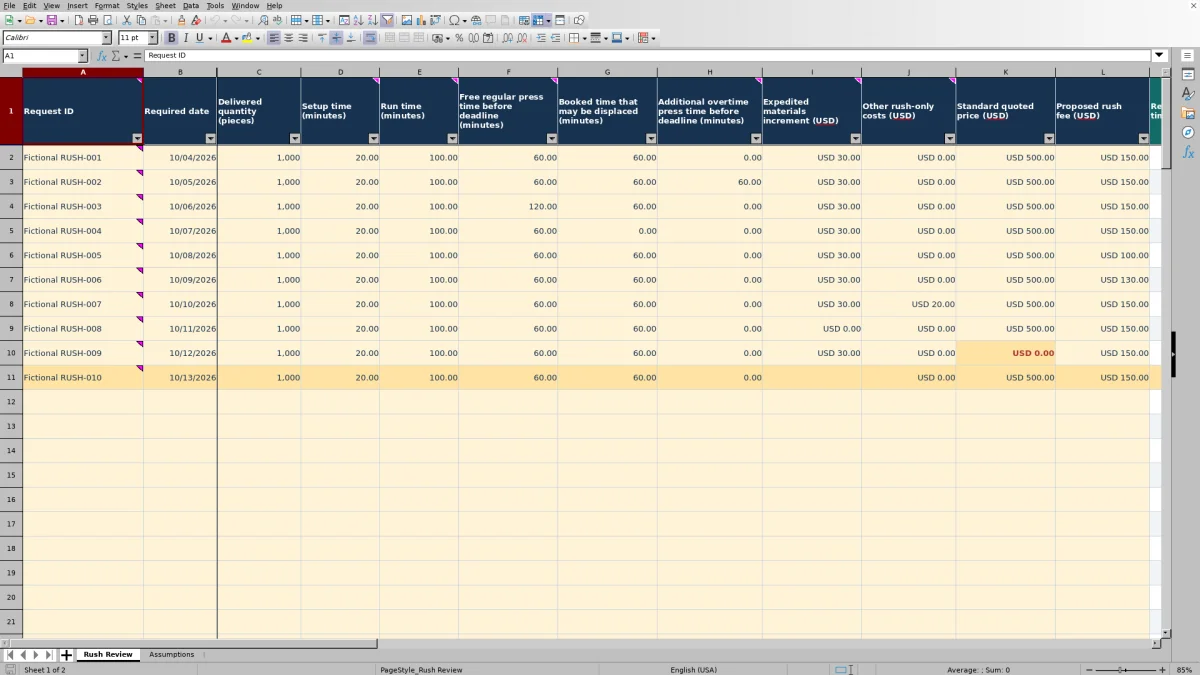
Clear the fictional examples from the editable input cells on Rush Review without deleting the calculated columns. Enter a unique Request ID, Required date, and Delivered quantity (pieces). Bring setup and run minutes from your standard production estimate, including planned spoilage-related press time.
3. Enter capacity, added costs, and pricing
Enter free regular press minutes, booked minutes that may be displaced, and additional overtime minutes actually planned for this request before its deadline. Add the materials premium and other rush-only costs in USD, followed by the standard quoted price and proposed fee. Enter explicit zeros where a required time or cost does not apply.
4. Review the decision before quoting
Read Capacity check and Decision and separate warnings, then compare Total incremental cost (USD), Suggested rush fee (USD), and Proposed total price (USD). Resolve missing inputs or warnings first. Confirm the real press window, crew, materials, and finishing availability before offering a due date. Leave formula columns M:W intact; they are not sheet-protected.
Determine whether the request fits the entered press window
Assess one press and one deadline window for each request. Required press time is setup time plus run time. The workbook subtracts free regular minutes and planned additional overtime from that requirement, with any remaining minutes treated as displaced booked time:
Displaced minutes = MAX(0, required minutes − free regular minutes − entered overtime minutes).
The Capacity check compares that result with Booked time that may be displaced (minutes). If the remainder exceeds the amount you entered, the result is Capacity shortfall. If overtime exceeds the entire press-time requirement, the result is Check overtime.
Within entered capacity is not a delivery promise. The required date does not generate a calendar-based availability calculation. You must assess the available minutes yourself, and the check does not establish whether finishing, stock delivery, or staffing can support the deadline. Resolve those constraints before deciding that a rush quote is feasible.
Charge only the costs added by the rush request
Start with a completed standard estimate. Normal setup, run, labor, and material costs belong there. This workbook adds displacement cost, incremental overtime cost, expedited materials premiums, and other rush-only expenses; it does not rebuild the base job cost.
On Assumptions, Displaced contribution loss should represent contribution genuinely lost or delayed per press minute, not displaced sales revenue. The workbook multiplies that rate by displaced booked minutes. Incremental overtime cost should include the applicable crew costs above amounts already covered by the standard estimate.
Enter planned overtime actually used, not all overtime that might be available. Every entered overtime minute is charged at the assumption rate, even when the free regular capacity could cover part of that time.
For Expedited materials increment (USD), enter only the premium above normal procurement. Use Other rush-only costs (USD) for additional amounts not counted elsewhere. Check supplier and labor estimates for overlap before relying on the total; entering full material cost or normal labor again would overstate the rush increment.
Fictional example: displaced work versus overtime
The supplied Fictional RUSH-001 row describes 1,000 finished pieces required on 10/04/2026. It uses 20 setup minutes and 100 run minutes, so the press requirement is 120 minutes. With 60 free regular minutes, 60 booked minutes available for displacement, and no overtime, the calculation displaces 60 booked minutes and returns Within entered capacity.
Using the fictional assumptions of USD 1.50 per displaced press minute and USD 1.00 per overtime press minute, displacement costs USD 90.00 and overtime costs USD 0.00. Add a USD 30.00 expedited materials premium and USD 0.00 in other rush-only costs: Total incremental cost (USD) is USD 120.00.
A fictional 25% markup produces a suggested rush fee of USD 150.00. The entered proposed fee matches that amount. Added to the USD 500.00 standard quote, it gives a proposed total of USD 650.00 and incremental contribution after rush costs of USD 30.00. The fee is 30% of the standard price, and the decision is Meets target.
The supplied fictional overtime alternative uses the same press requirement and free regular time but enters 60 overtime minutes. That leaves no displaced booked time. Its incremental cost is USD 90.00 and suggested fee is USD 112.50. The proposed fee remains an editable input; it does not automatically change to the suggestion.
These results support a choice between two entered plans, not proof that either plan is available. Confirm whether the overtime can actually be worked and whether moving booked work would cause the estimated contribution loss before selecting the plan to quote. All figures in this example are fictional.
Interpret the suggested fee and contribution correctly
Suggested rush fee (USD) applies your markup to Total incremental cost (USD): incremental cost × (1 + markup). Markup is not margin. Markup is measured against cost; margin is measured against the resulting fee. Enter a markup assumption rather than treating the field as a desired margin percentage.
Decision and separate warnings distinguishes three pricing outcomes once the required entries and capacity check allow the review:
- Below incremental cost: the proposed fee is less than the entered rush costs. Revisit the fee, cost inputs, or production plan.
- Below target: the fee covers those costs but falls below the selected markup target. Decide whether to revise it or knowingly accept the lower contribution.
- Meets target: the proposed fee reaches the calculated target. Read any appended warnings and confirm operational feasibility before quoting.
Incremental contribution after rush costs (USD) subtracts the rush cost from the proposed fee. It is not total job profit: the workbook does not calculate the profitability of the standard estimate. Rush fee / standard price (%) is a comparison output, not the basis of the suggested surcharge.
Troubleshooting blank results and misleading entries
A blank result is not a zero cost. Missing rates suppress dependent calculations, and Total incremental cost (USD) stays blank unless Capacity check returns Within entered capacity and the required cost entries are numeric. Some preliminary outputs, including the proposed total price, can appear before the overall review is complete.
- Incomplete: check the request ID, numeric date, quantity, time and cost inputs, and all three assumptions. Use a real Excel date in Required date rather than a text label. Enter zero where nothing applies instead of leaving the field blank.
- Capacity shortfall: confirm the time requirement and the amount of booked work that may genuinely move. If the window cannot support the request, change the operational plan or discuss a different deadline rather than increasing a capacity number merely to clear the message.
- Check overtime: review the planned overtime entry. It must not exceed the request's total press requirement.
- Duplicate ID warning: determine whether the row is an accidental duplicate or an intentional alternative. Give alternatives distinct IDs so you can tell them apart.
- Blank fee percentage with a zero standard price: enter the actual standard quote if it is missing. The workbook leaves this percentage blank because there is no nonzero price to divide by.
Input validation can be bypassed by pasted data, so review pasted values for units, signs, and numeric formats. If a formula has been overwritten, restore it from an intact copy before using the affected result. Open the file in Excel or LibreOffice and verify recalculated outputs.
Keep alternative quotes separate from a production schedule
Rows are independent scenarios. They do not reserve press time, accumulate a workload total, or deduct one accepted request from the capacity entered on another row. Two requests can each pass using the same free minutes, even though both cannot use those minutes at once.
After accepting a rush job, reassess the real press window before evaluating the next request. If you are comparing alternative plans for one job, use distinct request IDs and keep the selected plan clear in your quote records outside the workbook.
The three editable rates on Assumptions feed the request calculations throughout the file. Save a dated copy before changing shared assumptions if you need to preserve the basis of an earlier quote. Do not rely on the workbook to keep an automatic quote history.
Delivered quantity (pieces) records the finished-piece requirement, but it does not calculate run time. Update the setup and run estimates yourself when the specification or quantity changes; do not treat finished pieces as sheets or impressions.
Compare with a manually built rush-fee spreadsheet
A blank spreadsheet can record the same business reasoning, but you must build and check the calculations yourself. This workbook supplies a defined incremental-cost model while leaving the capacity assessment and quote decision with you.
| Method | Capacity assessment | Pricing calculation | Review and records | Workflow scope |
|---|---|---|---|---|
| Print Shop Sheets rush workbook | Checks entered required, free, displaceable, and overtime minutes for one press window. | Calculates incremental cost, markup-based fee, proposed total, and contribution. | Includes completeness and pricing decisions, separate warnings, and 100 request rows; preserve earlier versions manually. | Evaluates independent scenarios; does not reserve capacity or build a production schedule. |
| Manually built spreadsheet | You define the capacity inputs and create any checks needed. | You write and verify the cost, fee, and contribution formulas. | You establish entry checks, identifiers, and a version-retention process. | Its scope depends on what you build and maintain; a basic record does not itself reserve capacity. |
Use this workbook when its one-press, manually assessed deadline window matches your rush review. A custom spreadsheet may suit a different cost structure if you are prepared to define and verify it. If the next decision requires shared scheduling or capacity reservations across accepted jobs, evaluate a scheduling or print MIS workflow for those specific needs rather than treating either spreadsheet as a live schedule.
Frequently asked questions
Can I use this to create the standard print quote?
No. Begin with an existing standard estimate and enter its selling price in Standard quoted price (USD). The workbook evaluates the added rush fee and proposed total; it does not calculate the full job's base production cost.
Are the prefilled rates and requests recommended shop standards?
No. All ten prefilled requests and the demonstration rates are fictional. Replace the assumptions with your own estimates and clear the example input values before operational use, keeping the formulas intact.
Does the workbook calculate spoilage or stock requirements?
No separate spoilage or stock-quantity calculation is provided. Include planned spoilage-related press time in the setup and run minutes brought from your standard estimate. Delivered quantity (pieces) is finished output, not gross production quantity.
Can I include a rush finishing charge?
An additional finishing expense can be entered in Other rush-only costs (USD) if it is caused by the rush request and is not already included elsewhere. That entry adds a cost only; it does not calculate finishing capacity or verify that the finishing deadline is achievable.
Can the workbook be used in LibreOffice?
The file is set to recalculate when opened in Excel or LibreOffice. Verify the calculated results in the application you use before issuing a quote, especially after pasting inputs or editing the workbook.
Editorial coverage

Clara WinslowPrint estimating editor

Miles FenwickPrint workflow editor