A markup percentage and a gross margin percentage do not produce the same print quote. The Print Shop Sheets markup and margin calculator for Excel helps you choose a selling price from entered job costs—or check the margin on a price you already have in mind.
This editable workbook is a price decision table, not print MIS software or a production estimator. You supply the cost totals and delivered quantity; it calculates the quote price, gross profit on included costs, markup, gross margin, and price per delivered piece. Supplied examples are fictional.
Where this workbook helps
- Separate markup on cost from margin on selling price before choosing a quote.
- Check whether a proposed total price covers the costs you entered.
- Relate a total quote to delivered pieces without confusing pieces with press sheets.
- Use input checks and an editable margin warning to identify decisions that need another look.
What is in the file
How to get started
1. Set your warning assumption
Keep a clean master copy, then open Assumptions and Guide. Review Minimum gross margin warning in B2. The supplied 30% is a fictional demonstration assumption, not an industry standard. Enter your own threshold from 0% to less than 100%, and check Assumption review. This setting is a warning, not a price adjustment.
2. Identify the quote and enter job costs
On Price Decisions, start in a prepared blank row from 12 through 101. Enter Quote ID, Decision Date, Fictional Example or Job Description, and Delivered Quantity (pieces). Use a valid date, such as 10/15/2026, and a positive whole-number quantity. Enter job totals in all four cost fields, using numeric 0 where no cost applies.
3. Choose one pricing method
In Pricing Method, select Margin or Markup to calculate a price from Target Percentage (%); leave Entered Price (USD) blank. Select Price to test a proposed total selling price in Entered Price (USD); leave Target Percentage (%) blank. Enter percentages with the percent sign or as decimal fractions.
4. Review the result before issuing the quote
Read Quote Price (USD), Gross Profit (USD), Gross Margin on Price (%), and Review Status together. Check the cost scope and delivered quantity before relying on Price per Delivered Piece (USD/piece). Resolve incomplete or conflicting inputs, then decide whether to keep the price, change the target, or revisit the cost estimate.
Build the cost total before choosing a percentage
The pricing calculation starts with four job totals: Setup Cost (USD), Run Cost (USD), Paper and Materials Cost (USD), and Other Included Cost (USD). Total Included Cost (USD) adds these amounts only when all four are numeric and nonnegative. These are total dollars for the job, not hourly rates or per-sheet prices.
Keep each cost in one place. Setup should exclude costs already assigned to the run. If paper and materials are entered separately, remove them from any run-cost total that already includes them. Use Other Included Cost (USD) for additional costs you intend to include, and keep a separate breakdown if you need to explain that total later.
Expected spoilage expense must already be included in the appropriate totals. The workbook does not calculate spoilage, yield, imposition, or press capacity. Gross Profit (USD) is selling price minus these included costs; it is not an accounting profit report. Before choosing a target, decide which expenses your estimate includes and which still need to be allowed for.
Choose margin or markup by the denominator
Use Margin when your target describes the share of the selling price left after included costs. The workbook calculates price as included cost ÷ (1 − target gross margin). The target must be at least 0% and less than 100%, and included cost must be positive.
Use Markup when your target describes the amount added relative to cost. The calculation is included cost × (1 + target markup). This method accepts any nonnegative target, but it also requires positive included cost.
The distinction is price versus cost as the denominator. Markup on Cost (%) divides gross profit by included cost; Gross Margin on Price (%) divides gross profit by quote price. If your shop talks about a margin target, do not enter that percentage under Markup. Choose the method first, then check the calculated percentages to confirm the result matches your intent.
Fictional example: the same target produces different prices
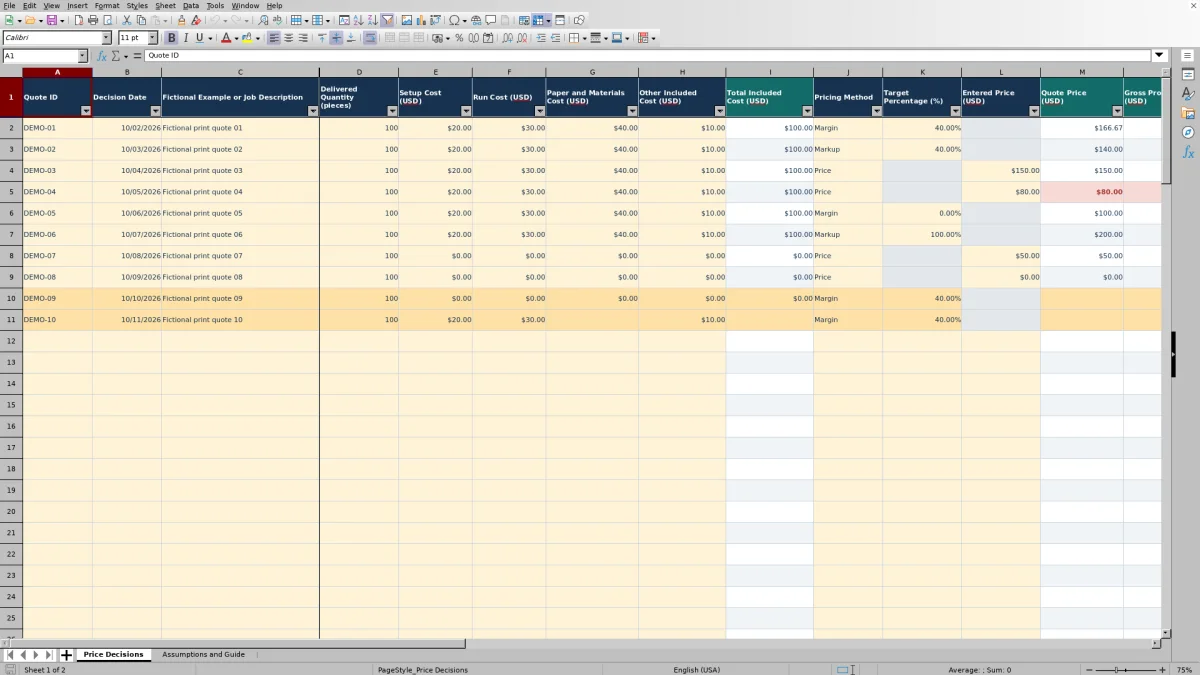
The supplied DEMO-01 and DEMO-02 rows use fictional costs of $20.00 for setup, $30.00 for the run, $40.00 for paper and materials, and $10.00 for other included costs. Together, these are $100.00 in included cost for 100 delivered pieces.
- With Margin selected and a 40% target, $100.00 ÷ (1 − 0.40) rounds upward to a $166.67 quote. Gross profit is $66.67. The displayed gross margin is 40.00%, and markup on cost is 66.67%.
- With Markup selected and the same 40% target, $100.00 × 1.40 produces a $140.00 quote. Gross profit is $40.00, but gross margin is only 28.57%.
The difference is not a calculation error. A 40% addition to cost does not leave 40% of the selling price as gross profit. If your intended target is a 40% gross margin on included costs, choose the Margin method rather than accepting the lower markup-based result.
For the margin-based quote, dividing $166.67 by 100 delivered pieces gives $1.6667 per delivered piece. Use that result to explain the unit price, while retaining the calculated total as the basis of the quote.
Test a proposed price and interpret unit pricing
Select Price when you have a proposed total selling price and want to see what it implies. Enter that amount in Entered Price (USD), leave Target Percentage (%) blank, and examine the calculated gross profit, markup, and margin. A positive gross profit means the price exceeds the costs you included; it does not establish that all shop expenses are covered.
The methods handle cents differently. Margin and Markup round the total price upward to two decimal places. Price rounds the entered total normally to two decimal places. Percentages are calculated from the resulting quote price, so upward rounding can put the actual margin slightly above the target.
Quantity means delivered pieces, not press sheets or impressions. Price per Delivered Piece (USD/piece) divides the total quote by that quantity and displays four decimal places. Changing quantity alone does not rebuild the cost estimate or change the total quote. If a customer changes the run quantity, revise the cost totals as needed before evaluating the new unit price.
Troubleshooting incomplete inputs and unexpected results
A visible price does not mean the entire row is ready to use. Some calculations can appear while identification or quantity inputs are still invalid. Read Review Status before carrying the result into a customer quote.
- Incomplete inputs: Check for a missing quote ID or description, an invalid decision date, a quantity that is not a positive whole number, or an incomplete cost total. Dates must be valid Excel dates without a time component.
- Blank total included cost: All four cost fields need numeric, nonnegative amounts. Replace an unused blank or a text dash with numeric 0; correct negative amounts rather than treating them as valid costs.
- Unexpected percentage result: Enter 40% or 0.40, not the plain number 40. In Markup mode, a stored value of 40 means 4,000%; in Margin mode, it is outside the allowed range.
- Conflicting method inputs: Clear Entered Price (USD) when using Margin or Markup. Clear Target Percentage (%) when using Price. A calculated amount is not a reason to leave both inputs filled.
- Blank percentage-based quote: Confirm that the included cost is positive and that the target is valid for the selected method. Zero-cost jobs require Price instead.
If a result still looks wrong, compare the entered cost totals with your source estimate. The workbook can check supported inputs, but it cannot determine whether you omitted a finishing charge or counted the same stock cost twice.
Handle zero cost and zero price without false percentages
A blank ratio is not a zero ratio. When included cost is zero, markup on cost has no valid denominator, so Markup on Cost (%) stays blank. Margin and Markup also leave the quote price blank because a percentage target alone cannot establish a price from zero cost.
For a genuine zero-cost entry, use Price and enter a nonnegative total selling price. With a positive price and zero included cost, the formulas show gross profit equal to price and gross margin of 100%. That is a result of the entered cost scope, not evidence that the job has no real expense. Check whether the zero cost is intentional before proceeding.
When the quote price is zero, Gross Margin on Price (%) stays blank because its denominator is zero. With positive included cost, a zero price produces negative gross profit and a markup of −100%. If both cost and price are zero, gross profit is zero and both percentage ratios remain blank. Review the dollars and the reason for the entry rather than interpreting missing percentages as acceptable performance.
Compare this workbook with a manual pricing record
A paper estimate or blank spreadsheet can record a pricing decision, but you must supply the calculation method and checking routine. This workbook provides a defined structure for the cost-to-price decision without becoming a full job-management system.
| Method | Cost-to-price calculation | Input and exception checks | Decision record | Production estimating scope |
|---|---|---|---|---|
| Print Shop Sheets workbook | Prepared Margin, Markup, and Price formulas with calculated ratios and per-piece pricing. | Validation, Review Status, a margin warning assumption, and defined zero-denominator behavior. | Quote ID, decision date, description, and filterable decision rows. | Uses entered cost totals; does not calculate yield, imposition, or press capacity. |
| Paper record or blank spreadsheet | You calculate the price manually or build and maintain your own formulas. | You establish the checks and decide how to handle invalid or zero inputs. | You choose the fields, layout, and filing method. | You record or calculate production details separately unless you build them into the record. |
Use the workbook when you want a repeatable way to compare cost, markup, margin, and a proposed price. Keep a manual record if your pricing decisions are occasional and your existing checking process is sufficient. If you need production estimating or a connected workflow from estimate to job ticket, evaluate a tool that explicitly supports those tasks; this workbook is limited to the pricing decision described here.
Frequently asked questions
How many quote decisions are prepared in the file?
Price Decisions has formulas in rows 2–101, providing 100 prepared decision rows. Rows 2–11 contain fictional examples, and rows 12–101 are blank prepared input rows. Do not assume rows added beyond 101 will inherit formulas, validation, or formatting automatically.
Are the formula cells protected?
No. The guide identifies cream cells in columns A–H and J–L as inputs and teal headers for calculated columns I and M–R. Formula cells are visually separated, not protected. Keep a clean master copy and avoid typing over calculated results.
Can I find a previous quote in the workbook?
The Price Decisions sheet has filters across its prepared range, so you can use recorded identifiers, dates, or descriptions to narrow the visible rows. Those fields help locate entries, but they do not establish automatic revision history. Save a dated copy before replacing a cost estimate or pricing decision you may need later.
Does the minimum margin warning set my selling price?
No. Minimum gross margin warning on Assumptions and Guide is a warning assumption only; it never changes a price. Your selected pricing method and its inputs determine the quote. Choose the threshold for your own review process rather than treating the fictional demonstration setting as a recommended margin.
Editorial coverage

Clara WinslowPrint estimating editor

Miles FenwickPrint workflow editor