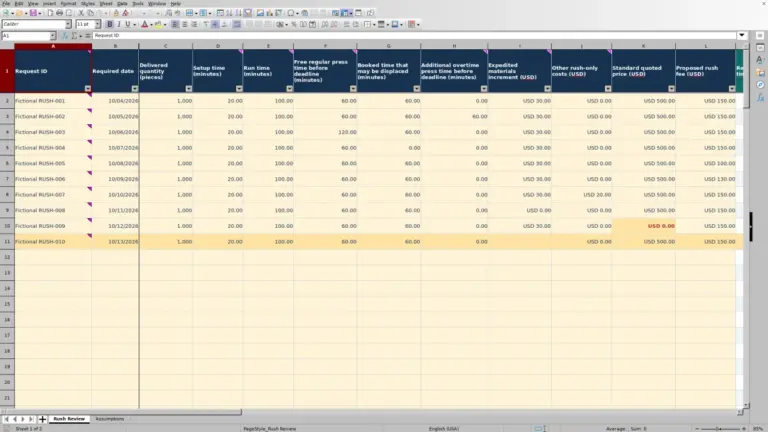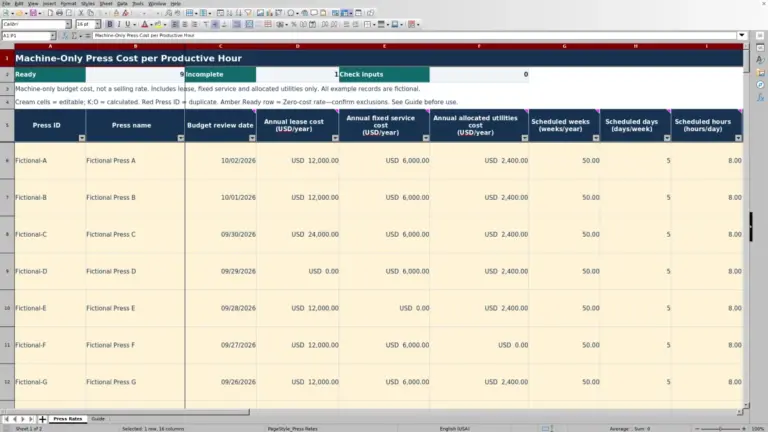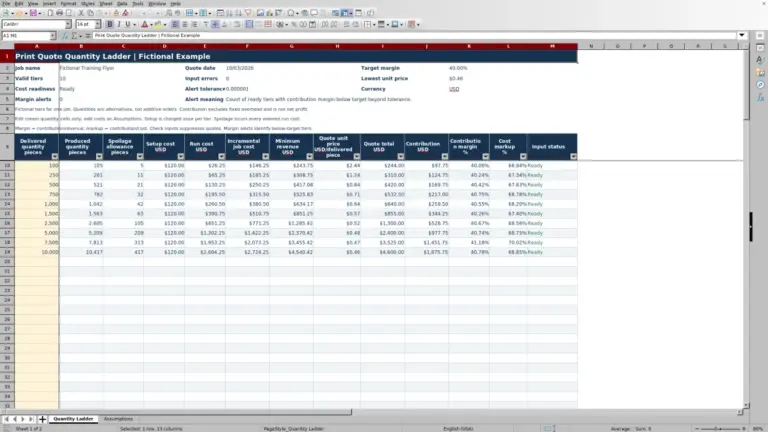
An offset quote needs a clear connection between the planned run and the price you offer. The Print Shop Sheets offset printing quote calculator is an editable Excel workbook for estimating stock, plate, setup and run costs, then applying your chosen markup.
Enter the job quantities and production assumptions, select a costing profile, and review the cost breakdown before preparing your customer quote. This is a workbook, not print MIS software or a consulting service. Its included sample jobs and rates are fictional.
Where this workbook helps
- Separate stock, plate, setup and run costs so you can see what contributes to the estimate.
- Account for extra run spoilage and makeready sheets without treating them as delivered pieces.
- Use shared costing profiles to apply a consistent set of editable rates to selected quotes.
- Review a proposed total price and price per delivered piece before deciding what to offer.
What is in the file
How to get started
1. Set up a costing profile
On Assumptions, enter a unique Profile ID, stock description, paper weight convention, sheet dimensions and the applicable rates. Complete the speed, makeready, setup, spoilage and markup inputs. Check Rate readiness before using the profile; replace fictional rates with your own estimates.
2. Describe the planned run
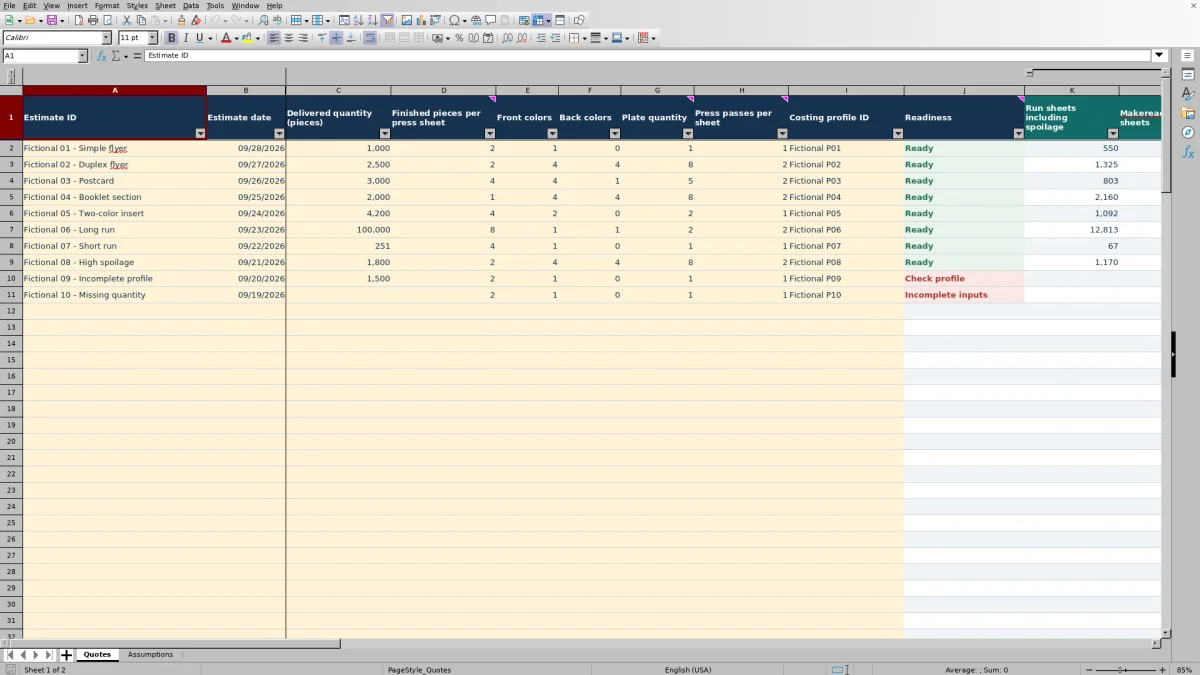
On Quotes, enter a unique Estimate ID and an Estimate date. Complete Delivered quantity (pieces), Finished pieces per press sheet, Front colors, Back colors, Plate quantity and Press passes per sheet. These are production inputs you supply, not a layout or press plan generated by the workbook.
3. Select the rates and check readiness
Choose the Costing profile ID from the dropdown. Review Readiness and resolve incomplete or invalid entries before interpreting the calculated outputs. Keep your edits in the input fields rather than replacing formulas.
4. Review the estimate before quoting
Check the sheet quantities, impressions, setup and run minutes, and individual cost layers. Then review Proposed price (USD) and Price per delivered piece (USD). Account separately for any required work outside the modeled costs, and save a dated copy before issuing the quote.
Confirm the production plan before costing it
The estimate starts with how many finished pieces you expect from each press sheet. The workbook divides delivered quantity by pieces per sheet and rounds up to a whole sheet. It then applies the profile's extra run spoilage percentage and rounds up again. Makeready sheets are added separately, based on press passes multiplied by makeready sheets per pass.
Pieces, sheets and impressions are different quantities. Run impressions equal run sheets including spoilage multiplied by press passes per sheet. That impression count drives run time; the total stock quantity includes makeready sheets as well.
Enter Plate quantity and Press passes per sheet from the actual production plan. The cost formulas use those entries directly; they do not derive them from Front colors and Back colors. Likewise, sheet dimensions describe the stock but do not calculate how many pieces fit. Confirm the layout, plate requirement and pass count before trusting the cost.
Practical example: a fictional duplex flyer estimate
The included fictional duplex flyer uses 2,500 delivered pieces, two finished pieces per press sheet, four front colors, four back colors, eight plates and two press passes per sheet. Its Fictional P02 profile supplies the following assumptions and results:
- Stock: 2,500 ÷ 2 gives 1,250 base sheets. Adding 6% extra run spoilage gives 1,325 run sheets. Two passes × 80 makeready sheets per pass adds 160 sheets, for 1,485 total stock sheets. At USD 0.18 per sheet, stock cost is USD 267.30.
- Plates: eight plates × USD 14.00 per plate gives USD 112.00.
- Setup: two passes × 35 minutes per pass gives 70 setup minutes. At USD 75.00 per hour, setup cost is USD 87.50.
- Run: 1,325 run sheets × two passes gives 2,650 impressions. At 6,000 impressions per hour, that is 26.5 run minutes. At USD 125.00 per hour, run cost rounds to USD 55.21.
The four rounded cost layers total USD 522.01. Applying the profile's 30% cost markup produces a proposed price of USD 678.61, with price per delivered piece displayed as USD 0.2714.
This result is the modeled price for the entered production plan—not evidence that the whole order is covered. Next, confirm the assumed stock yield and press speed, then identify any finishing, delivery or other charges that must be handled outside these cost layers. None of the sample allowances or rates is an industry standard.
Interpret markup and decide whether the price is complete
The workbook totals Stock cost (USD), Plate cost (USD), Setup cost (USD) and Run cost (USD) into Direct cost (USD). Each cost layer is rounded to cents before it is summed. Proposed price (USD) is direct cost multiplied by one plus the selected profile's markup, rounded to cents.
Markup is not gross margin. The percentage is applied to cost, not to selling price. Choose it according to your pricing approach rather than entering a target margin percentage as though the two were interchangeable.
The modeled total has no separate cost layers for finishing, freight, tax or other job-specific charges. It also does not establish what overhead your hourly rates already recover. Review those inclusions before treating the proposed price as a complete customer offer, and avoid adding the same allowance twice.
Price per delivered piece divides the rounded proposed total by delivered quantity. Because the displayed unit price is rounded to four decimal places, multiplying that displayed figure back by quantity may not exactly reproduce the total. Decide which price basis your customer quote will state.
Choose rates that match the stock and planned run
Each row on Assumptions combines stock identification with the rates and production allowances used by a quote. Check Stock description, Paper weight value, Weight convention, Sheet width (inches) and Sheet length (inches) before selecting that profile. A matching name alone is not enough to confirm the stock.
Enter Stock cost (USD/sheet) as a price per press sheet—not a price per package, ream or thousand sheets. Enter setup and run rates in USD per hour, and run speed in impressions per hour. A unit mismatch can produce a plausible-looking estimate that is materially wrong.
Setup and run time are modeled separately. Setup minutes come from passes multiplied by setup minutes per pass; run minutes come from run impressions divided by run speed, converted to minutes. Makeready sheets affect stock cost but are not added to Run impressions. Set the setup allowance to reflect the work you intend it to cover, and assess other delays separately.
Troubleshooting blank outputs and questionable costs
A blank price is not a zero-cost job. A completely empty estimate row stays blank, and the cost outputs remain blank unless Readiness is Ready. Start with the status and inputs rather than typing a price into a formula cell.
- Incomplete inputs: finish the estimate fields from Estimate ID through Costing profile ID. Use an explicit zero for an unprinted side; do not leave Back colors blank on a one-sided job.
- Incomplete rates: complete the profile fields on Assumptions. Missing stock details matter to Rate readiness even when you have entered the monetary rates.
- Invalid entries: check for duplicate IDs, numeric entries stored as text, non-whole quantities, both color counts set to zero, or a run speed that is not positive. Use positive whole numbers for delivered quantity, pieces per sheet, plates and passes.
- Percentage errors: enter spoilage and markup as percentages, such as 6%, rather than the whole number 6. Extra run spoilage must be between 0% and 100%.
- Unexpectedly low costs: inspect the selected profile. Several rate fields allow zero, so a Ready status alone does not establish that the estimate is commercially complete.
Readiness is an input check, not approval of the production plan. If a visible Calculation error remains after correcting inputs, verify the profile's run speed and delivered quantity, and check whether formulas were overwritten. Compare affected formulas with an unchanged copy of the workbook.
Preserve the original estimate when rates change
Quotes retrieves rates from Assumptions using the Costing profile ID. Editing a profile can therefore change calculations for estimates that reference it. An estimate date identifies the row; it does not freeze the rates used that day.
Save the quoted version before revising rates. Keep a dated workbook copy when you issue an estimate. For a new rate set, you can enter another profile with a unique Profile ID in a prepared input row, then select it for the revised estimate.
Give the revision its own unique Estimate ID and compare both the production inputs and the cost layers. This helps distinguish a supplier-price change from a change in quantity, yield or press passes. Do not assume the workbook maintains an automatic revision history or locks previously quoted prices.
Compare with a blank estimating spreadsheet
A blank spreadsheet is a realistic alternative when your shop needs a different costing structure. The choice depends on whether the supplied offset model matches your work or whether you need to build and maintain a broader estimate.
| Method | Calculation setup | Rate handling | Input checks | Scope and revisions |
|---|---|---|---|---|
| Print Shop Sheets workbook | Prepared sheet, impression, time, cost and markup formulas. | Quotes selects a shared costing profile from Assumptions. | Supplied validation and readiness formulas check defined inputs. | Models four cost layers; preserve quoted versions with saved copies. |
| Blank spreadsheet | You design, enter and test the formulas needed for each estimate. | You decide whether rates are entered per job or referenced from another area. | You create any validation or completeness checks you need. | You can design additional cost layers and a revision process, but must maintain them. |
Use this workbook when its stock, plate, setup and run model fits the estimate and you want a prepared structure. Consider a custom spreadsheet when your routine quotes require a materially different cost model. In either case, check the production assumptions and keep a record of the version sent to the customer.
Frequently asked questions
How many estimates can I enter in the supplied workbook?
Quotes has prepared formula rows from row 2 through row 101, supporting 100 estimate rows. Assumptions has the same prepared capacity for costing profiles. Entering data below those ranges is not the same as extending the formulas, lookups and validation.
Does the workbook convert paper weights?
No paper-weight conversion is shown in the supplied calculations. Weight convention accepts gsm, lb text, lb cover or lb bond so you can identify the stock correctly. Keep the value with its convention; the same number under different conventions does not identify equivalent stock.
Can I read the time estimate in press hours?
The output fields are Setup minutes and Run minutes. To interpret either in hours, divide it by 60; the cost formulas already make that conversion when applying hourly rates. These estimates do not provide a production schedule or promised turnaround time.
What date format should I use?
Enter a valid Excel date in Estimate date. The workbook displays dates in mm/dd/yyyy format, such as 09/28/2026 in the fictional sample. A text label that merely looks like a date may not pass the numeric date check.
Does this create a customer-ready quote document?
The supplied workbook calculates and displays proposed prices on Quotes; it does not include a separate customer quote layout. Use the reviewed estimate to prepare your customer-facing quote with the job scope, terms and any charges not represented by the workbook's cost layers.
Editorial coverage

Clara WinslowPrint estimating editor

Miles FenwickPrint workflow editor