When a customer asks for several run quantities, you need comparable prices for the same job. The Print Shop Sheets quantity ladder workbook uses your setup cost, per-piece run costs, spoilage estimate and target contribution margin to calculate alternative quotes in Excel.
Enter one set of assumptions, then review the unit price, quote total and contribution at each delivered quantity. This is an editable estimating workbook, not print MIS software. Its supplied data is fictional, and contribution is not net profit: fixed overhead is excluded.
Where this workbook helps
- Compare alternative quantities for one job without rebuilding the cost calculation for every option.
- See how a setup charge spread across more delivered pieces affects the calculated unit price.
- Include estimated rejected pieces in paper, printing and finishing run costs.
- Review rounded quote totals and contribution margins before choosing the quantities to offer.
What is in the file
How to get started
1. Replace the fictional job assumptions
On Assumptions, enter your Job name and Quote date. Replace the setup cost and the paper, printing and finishing run costs with your own estimates. Run costs must be in USD per produced piece; convert supplier sheet prices or other rates before entering them.
2. Set spoilage, margin and rounding
Enter Spoilage, rejected/produced pieces and Target contribution margin as percentages from 0% to less than 100%. Set a positive Unit-price rounding increment, USD. Check that Input readiness says Ready before reviewing prices.
3. Enter the quantities the customer might order
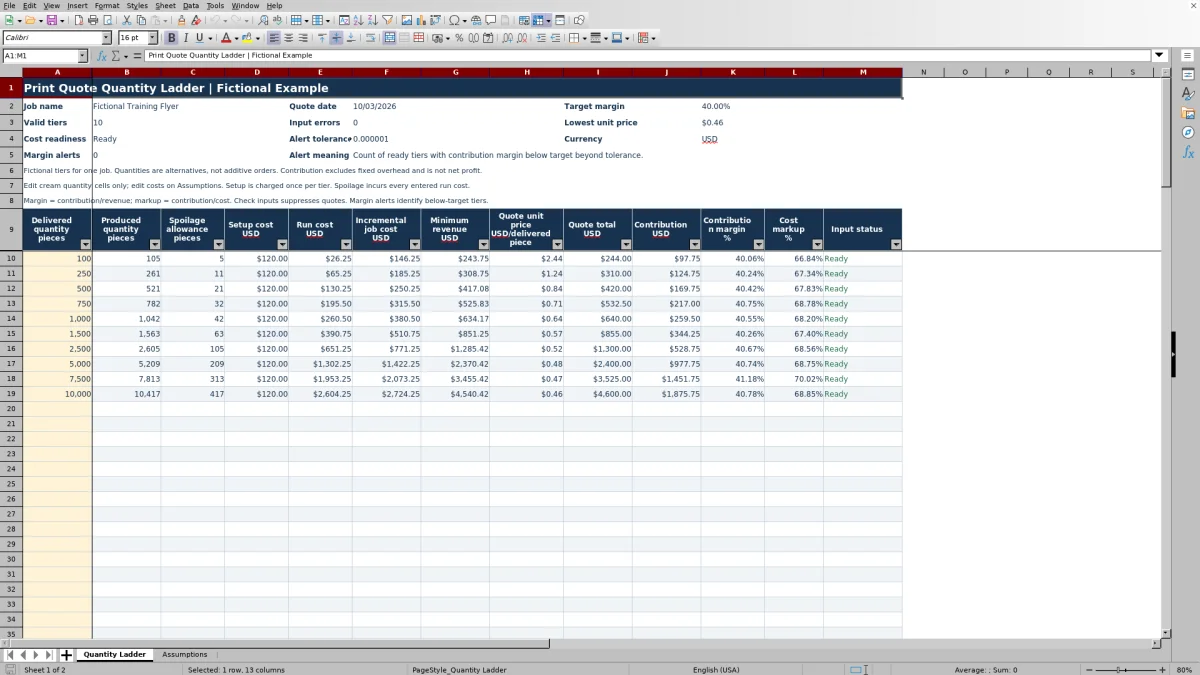
On Quantity Ladder, edit the cream quantity cells in A10:A109. Use positive whole numbers of delivered pieces. Each row is an alternative quantity for the same job, not an additional order.
4. Review the calculated options
Check Input status for each entered row, then compare Quote unit price, Quote total and Contribution margin. Review Input errors and Margin alerts at the top. Save a dated copy before changing assumptions for a revised quote, and select the options you want to present to the customer.
Put costs on the right basis before pricing tiers
The ladder applies one setup charge and one combined run rate to every alternative quantity. On Assumptions, Incremental setup cost, USD/job stays separate from the three run-cost entries. Combined run cost, USD/produced piece adds paper, printing and finishing; each tier multiplies that rate by its calculated produced quantity.
Enter run costs per produced piece, not per sheet or impression. The workbook does not convert paper weight, sheet yield or press impressions into pieces. If your supplier quotes stock by the sheet, work out the applicable per-piece cost outside the file before entering it.
This shared rate makes the tiers comparable under one set of assumptions. It also limits the model: a different press route, stock price break or finishing method may change the run rate or setup cost. When a quantity requires different assumptions, price that scenario in a separate copy rather than treating the existing ladder as a quantity-specific cost schedule.
Check what the spoilage estimate actually charges
The spoilage input means rejected pieces divided by produced pieces. To find the required production quantity, the workbook divides delivered pieces by one minus the spoilage fraction, then rounds up to a whole piece. In formula terms: produced quantity = ROUNDUP(delivered quantity / (1 − spoilage), 0).
This is not simply a percentage added to the delivered quantity. The difference between produced and delivered quantities becomes Spoilage allowance, pieces. That allowance represents an estimate for quoting, not a measured rejection count from the run.
Every produced piece incurs all entered run costs, including finishing. If your rejected pieces are removed before finishing, or losses occur at different stages, this single-rate model will not separate those stages. Decide whether that treatment is suitable for the quote; use a more detailed cost calculation when stage-specific losses matter.
Fictional example: price a 1,000-piece option
The supplied Fictional Training Flyer illustrates the calculation; these are not recommended shop rates. Its assumptions are a $120.00 setup charge, $0.08 paper cost, $0.12 printing cost and $0.05 finishing cost per produced piece. Spoilage is 4%, the target contribution margin is 40%, and the unit-price rounding increment is $0.01.
- For 1,000 delivered pieces, 1,000 ÷ 0.96 rounds up to 1,042 produced pieces, allowing 42 rejected pieces.
- The combined run cost is $0.25 per produced piece. Multiplying by 1,042 gives $260.50 in run cost; adding setup gives $380.50 in incremental job cost.
- Dividing $380.50 by 0.60 gives approximately $634.17 in minimum revenue. Dividing the unrounded result by 1,000 and rounding upward to the selected increment produces a $0.64 quote unit price.
- The quote total is $640.00. Subtracting incremental job cost leaves $259.50 in contribution, or a 40.55% contribution margin as displayed.
The rounded unit price puts this option slightly above the entered margin target. The next decision is whether the cost assumptions fit the actual job and whether to offer this quantity alongside other options. The contribution amount is available toward costs outside this incremental model; it is not a forecast of net profit.
Read margin, markup and rounding correctly
The workbook prices to a contribution margin, not a cost markup. Contribution is quote revenue minus incremental setup and run costs. Contribution margin divides that amount by revenue; Cost markup divides it by incremental job cost. The different denominators mean the two percentages are not interchangeable.
The target is a percentage of revenue, not a fixed contribution dollar amount across all quantities. The minimum-revenue calculation divides incremental job cost by one minus the target margin. It does not multiply cost by one plus that percentage.
Unit prices then round upward to the increment entered on Assumptions. Quote total is delivered quantity multiplied by that rounded unit price, so the displayed contribution margin can exceed the target. A larger rounding increment can create a larger difference. Review the resulting customer price before changing the increment; do not replace a calculated price cell with an unsupported discount and assume the rest of the quote has been checked.
Lowest unit price summarizes the numeric unit prices in the ladder. It does not identify the best order quantity for the customer or confirm that your shop has the capacity to produce it.
Troubleshooting blank prices, input errors and alerts
A blank quote is not a zero-dollar quote. A blank quantity leaves its row inactive. An entered quantity that is invalid, or assumptions that are not ready, suppresses the row's quote calculations. Lowest unit price also remains blank when there are no numeric unit prices to summarize.
- Check inputs on Assumptions: Check all seven pricing inputs from setup cost through rounding increment. Costs must be numeric and nonnegative, spoilage and target margin must be below 100%, and the rounding increment must be positive. At least one setup or run cost must be positive. Enter numeric zero for an unused cost instead of leaving it blank.
- Check inputs on an individual quantity row: enter a positive whole number of delivered pieces. Zero, negative numbers, fractions and text quantities are not valid.
- A percentage entry is rejected: enter a percentage with its percent sign or as the equivalent decimal fraction. A whole number such as 40 is not the same input as 40%.
- Margin alerts shows Check tolerance: inspect Margin alert tolerance, fraction on Assumptions. It must be a numeric, nonnegative value.
Margin alerts counts ready rows whose contribution margin falls below the target by more than the tolerance. The supplied tolerance is 0.000001 as a fraction. It is a comparison allowance, not a price adjustment. Zero alerts means no ready rows met that below-target condition; it does not mean that the entered costs are complete or accurate. Check Valid tiers as well, because no ready rows can also produce a zero alert count.
Keep alternative quotes and revisions separate
Each ladder row prices the same job at a different delivered quantity, with setup charged once for that option. Do not add the quote totals together. They are choices for an order, not line items for a combined order.
Changing a shared cost or target on Assumptions changes the basis for every entered tier. Before updating a stock rate or setup estimate, save a dated copy of the original quote. Use the editable Job name and Quote date to identify the scenario, and keep the accepted version separate from later revisions. The workbook does not provide an automatic quote-history log.
Once a customer selects an option, confirm the specifications and hand off the accepted quantity and price through your normal job-ticket process. The ladder supports the pricing decision; its Ready status does not approve artwork, verify production capacity or certify a finished job.
Compare the workbook with a blank estimating spreadsheet
A blank spreadsheet is a realistic alternative when you already maintain your own estimating formulas. Compare the amount of setup needed and the cost structure you need to represent, rather than assuming either approach fits every print job.
| Method | Cost model | Quantity calculations | Checks | Revision handling |
|---|---|---|---|---|
| Print Shop Sheets quantity ladder | One shared setup charge and paper, printing and finishing rates per produced piece. | 100 prepared rows calculate spoilage, rounded prices and contribution for alternative quantities. | Built-in numeric input checks, readiness statuses and below-target margin alert count. | Save separate copies to preserve different assumptions or quote versions. |
| Blank estimating spreadsheet | You define the cost categories and whether rates vary by quantity or production route. | You build and maintain the quantity, spoilage and pricing formulas. | You create the validation rules and review checks you need. | You design a version record or manage separate files. |
Use this workbook when one incremental cost model fits the job and you want a prepared quantity comparison. Consider a custom spreadsheet when the estimate requires quantity-specific rates, multiple production routes or separate loss calculations by stage. Either approach still depends on sound cost inputs and a deliberate review before issuing a quote.
Frequently asked questions
How many quantity options can I enter?
The prepared range supports 100 options in Quantity Ladder, A10:A109. Leave unused quantity cells blank. Rows beyond that range are outside the verified calculation and summary ranges, so do not assume that adding more rows extends every check correctly.
Does the quote date update automatically?
The Quote date on Assumptions is an editable date, initialized to the workbook creation date. It is not a current-date formula. Set the appropriate quote date yourself; the workbook displays dates in MM/DD/YYYY format.
Can I use a zero setup cost or a zero margin target?
Yes. Setup and individual run costs may be zero, but at least one setup or run cost must be positive. A 0% target contribution margin is valid. Upward unit-price rounding may still produce some contribution, so inspect the calculated result rather than assuming it will be exactly zero.
Does the workbook add tax, freight or fixed overhead?
There are no dedicated tax or freight calculations in the verified workbook, and its contribution model explicitly excludes fixed overhead. It calculates from the entered incremental setup and run costs. Handle additional charges and your overhead assessment separately before issuing the final customer quote.
Is this a customer quote form or a print MIS?
It is an editable Excel estimating workbook. It provides a quantity ladder and shared assumptions, not a customer quote form, order-management system or production-control tool. Use its calculated options to support your normal quote preparation and job handoff.
Editorial coverage

Clara WinslowPrint estimating editor

Miles FenwickPrint workflow editor