
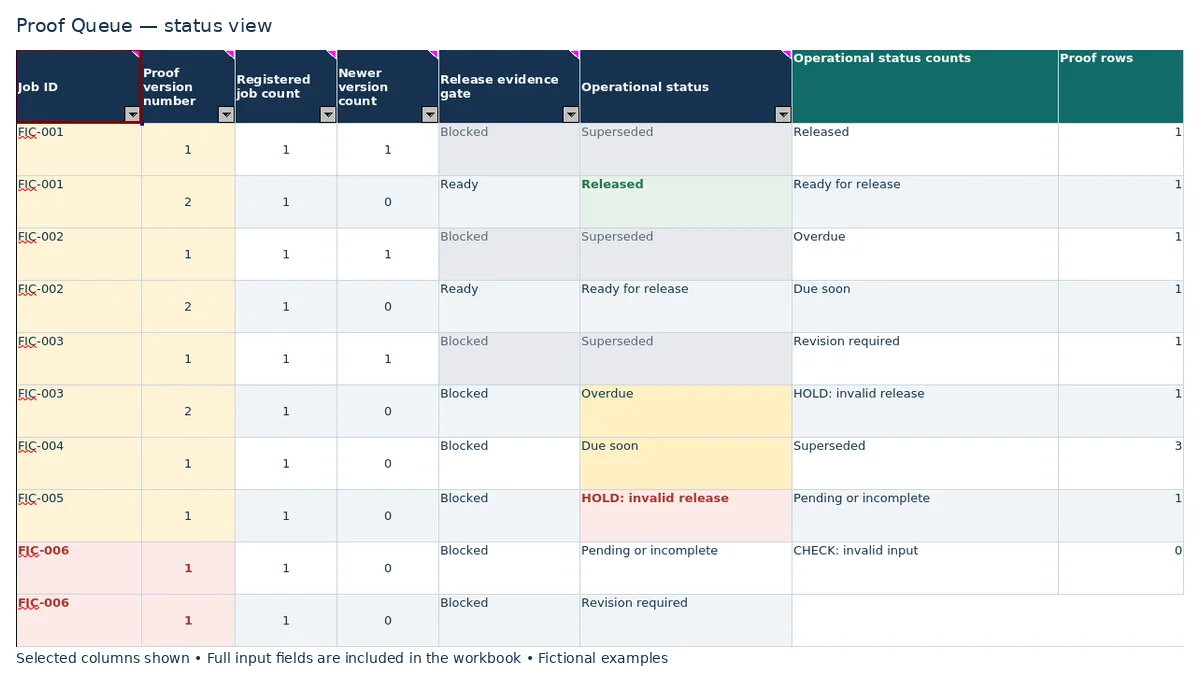
A customer’s approval is useful only when you know which proof it covers and who gave it. The Print Shop Sheets print proof approval tracker is an editable Excel workbook for recording proof versions, approval references, response deadlines, and release decisions.
Use it to keep the approval record together before the production handoff. It is a manual administrative log, not print MIS software: you enter the evidence, review the calculated status, and make the release decision separately.
Where this workbook helps
- Keep earlier signoff records while adding new proof revisions.
- Distinguish recorded customer approval from an explicit production release decision.
- Focus follow-up on pending responses using deadline status alerts.
- Identify missing approval evidence and registration problems before relying on a release status.
What is in the file
How to get started
1. Prepare the review settings and job record
In Lists and Settings, check Review date and Due-soon window (calendar days). Review date defaults to TODAY(); the due-soon window is an editable planning assumption. Replace the fictional sample inputs with your records while preserving formulas. In Job Register, enter one row per unique Job ID, along with the customer label, job description, and prepress coordinator.
2. Record the proof before sending it
In Proof Queue, select the Job ID and enter a positive whole number in Proof version number. Add the Proof file reference, Authorized customer approver, and Authorization reference. Record the Proof sent date and Response deadline when appropriate. Use a new row for each revision rather than overwriting an earlier record.
3. Enter the customer’s response and evidence
Update Customer response, Responding approver, Response date, and Version-specific signoff reference. Inspect the referenced records yourself to confirm that the authorization and signoff apply to this proof version. Matching names in the workbook does not authenticate the customer.
4. Review the gate before recording release
Read Release evidence gate and Operational status, and resolve highlighted input problems. Ready for release is not a release decision. When you decide to release the version, enter Release in Release decision, complete Released by and Release date, and confirm that the resulting status is Released before using the record for the handoff.
Keep each revision’s approval attached to its own record
A new proof version can change which approval is relevant to the job. The workbook compares version numbers for the same Job ID and treats the highest recorded version as current, even if you have not sent it yet. Earlier rows become Superseded rather than remaining current release authority.
Add a new row before sending a revision, and retain the earlier proof reference, response, and signoff reference. This preserves the entered record of what happened on each version. Do not carry an earlier approval forward merely because the customer requested only a small change.
Version numbers must be positive whole numbers, and each Job ID/version combination must be unique for the evidence gate to pass. If two rows use the same version number, check the actual proof records and correct the duplicate. Do not invent a new version number just to clear the warning.
Check authorization and signoff as two separate pieces of evidence
Authorization reference identifies the record permitting the named customer approver to approve this specific version. Version-specific signoff reference identifies the record of that version’s approval. These serve different purposes: permission to approve is not the approval itself.
The Release evidence gate checks recorded conditions, including one matching Job Register entry, a unique current version, required references, an Approved response, matching approver names, and valid date relationships. The response date must be on or after the proof sent date and no later than Review date. The deadline must not precede the sent date.
A populated reference is not verified evidence. The workbook checks that required entries are present; it does not open the referenced record or judge its contents. Before release, inspect the authorization and signoff outside the workbook. If the response came from someone else, resolve their authority rather than changing a name solely to make the gate pass.
Fictional example: approval becomes a separate release
The supplied FIC-001 records illustrate the sequence. All jobs, people, and document references in this example are fictional. To evaluate these dated records consistently, use a Review date of 09/28/2026 for the example.
- Job Register contains one FIC-001 entry. Proof Queue contains versions 1 and 2, with version 2 appearing once and no higher version recorded.
- Version 2 has the reference Fictional proof FIC-001 v2, a sent date of 09/25/2026, and a response deadline of 09/29/2026.
- Authorized customer approver and Responding approver both contain Fictional Customer Approver 001. The authorization reference is Fictional authorization FIC-001 v2.
- Customer response is Approved, Response date is 09/27/2026, and the signoff reference is Fictional signoff FIC-001 v2.
- Release decision is Release, Released by is Fictional Morgan Lee, and Release date is 09/28/2026.
The registration count is 1 and the newer-version count for version 2 is 0. With the required evidence entries and dates present, Release evidence gate returns Ready. The separate release entries then produce Released. Version 1 is Superseded because a higher version exists.
This result means the entered version 2 record satisfies the workbook’s release conditions. The next decision is whether the referenced evidence and the actual proof file support the production handoff. The result does not establish that anyone has inspected the artwork or that production has started.
Use deadlines and status counts to plan follow-up
Response deadline is the date you need the customer’s answer, not a press schedule or promised turnaround. Review date supplies the date basis for checks, while Due-soon window (calendar days) controls the planning window. Its supplied value of 2 calendar days is editable, not an industry standard.
Use the amber overdue and due-soon alerts to identify responses that need attention. Contact the customer through your normal process; the workbook does not send reminders. If a response arrives after the deadline, record its actual date. Lateness alone is not the same as missing approval evidence, and the evidence gate does not require the response to arrive by the deadline.
Operational status counts count proof rows, not unique jobs. One job can contribute a current row and several superseded rows. A zero Released count means no row in the prepared range currently has that status; it does not mean there are no registered jobs. Jobs entered only in Job Register do not appear as proof queue activity.
Troubleshooting holds, duplicate records, and blank results
- HOLD: invalid release: Release has been selected, but the release conditions are not satisfied. Check the evidence gate, Released by, and Release date. The release date must be on or after the response date and no later than Review date. Correct the record from actual evidence, or return the decision to Hold while resolving the issue.
- Registered job count is not 1: filter that field to find exceptions. A zero indicates no matching Job ID within the prepared register range; a count above 1 indicates duplicates. Correct the ID or register entries before relying on the row.
- Approval does not produce a ready gate: check for duplicate versions, a newer version, mismatched approver names, missing references, or invalid dates. Enter dates as Excel dates rather than text, and remove unintended spaces from names.
- Calculated fields are blank: Job ID drives the row checks. An empty Job ID leaves the main calculated outputs blank; an empty Job ID or version also leaves Newer version count blank. A blank result is not approval.
Pasted values can bypass validation, so review pasted records and highlighted cells. A ready evidence gate does not cancel a separate data warning. Do not overwrite a formula or alter evidence merely to obtain a preferred status.
Make the production handoff without overstating the status
Use the Job ID, current Proof version number, and Proof file reference to identify the record you are handing off. Check both the explicit release entries and Operational status. A ready record can still be awaiting the shop’s release decision; the status is not a substitute for that decision.
If another revision is recorded, the earlier release becomes historical and its row becomes Superseded. Recheck the current version before acting on an older printed or copied approval record.
The workbook does not inspect artwork, certify a proof or finished job, control a press, or schedule production. Its useful boundary is the administrative evidence trail. Your separate prepress checks and production handoff still need to establish which actual file will be used.
Compare this workbook with a paper approval log
Both methods can document customer responses when maintained carefully. Choose based on how you review revisions and release evidence, rather than assuming a spreadsheet replaces the approval process.
| Method | Revision review | Release evidence checks | Deadline follow-up | Record upkeep |
|---|---|---|---|---|
| Print Shop Sheets Excel workbook | Entered version numbers drive newer-version counts and Superseded status. | Formulas check entered conditions; staff must inspect referenced evidence. | Date-based alerts and status filters help identify rows to review; contact remains manual. | Enter each revision and response, preserve formulas, and maintain the prepared ranges. |
| Paper approval log | Staff compare entries and mark which revision is current. | Staff check completeness and read the supporting approval records. | Staff review written deadlines and contact customers manually. | Add dated entries and keep supporting records organized with the job. |
Use the workbook when filtering a queue and applying consistent recorded-data checks would help your coordinator. A paper log may fit a workflow where staff can reliably review the active records by hand. If you need customer messaging, artwork inspection, or production scheduling, evaluate a separate tool for those requirements; this workbook does not provide them.
Frequently asked questions
Can I use a fixed review date instead of today?
Yes. In Lists and Settings, Review date defaults to TODAY() but may be replaced with a date. A fixed date is useful for evaluating a dated set of records. It will not advance with the calendar, so update it for daily work or restore TODAY() when you want the current-date basis again.
Can I add more than 120 proof rows?
The prepared proof and job-register ranges cover rows 2–121. Before adding records below them, expand formulas, filters, validation, and counting ranges together. Typing a record into row 122 alone does not bring it into all existing checks.
Are the calculation cells protected from editing?
No worksheet protection is applied. Pale cream cells identify editable areas, and formula columns P:S are shaded but not locked. Keep a clean copy and avoid pasting across calculated fields; shading does not prevent a formula from being replaced.
Does the workbook store proof files or customer signoff documents?
Use the reference fields for plain document identifiers, not workbook links. Keep the actual proof, authorization, and signoff records in your normal filing system, with identifiers that let staff find the correct version. The workbook does not inspect those documents.
Are the supplied customer and job records real?
No. Every populated job, person, document identifier, and proof row is fictional. The examples include different approval and exception situations, and their displayed statuses can change as Review date changes. Replace sample inputs before using the file as your live log.
Editorial coverage

Clara WinslowPrint estimating editor

Miles FenwickPrint workflow editor